Page Builder
What is Vihzhuo?
Vihzhuo is a CodefyPHP specific fork of PHPageBuilder that allows you to create custom page layouts using a drap-and-drop interface. With Vihzhuo, you can create professional looking websites in no time without coding the whole thing by hand.
You can customize the appearance of your pages by using Vihzhuo's customized blocks including the ability to manipulate typography, colors, and other design elements. For your convenience, a default theme based on Bootstrap Business is included with even more customized blocks. This theme is part of the app template located in the public/themes directory.
Features
The main features of Vihzhuo is the Page Builder and the Website Manager where you manage all the website pages.
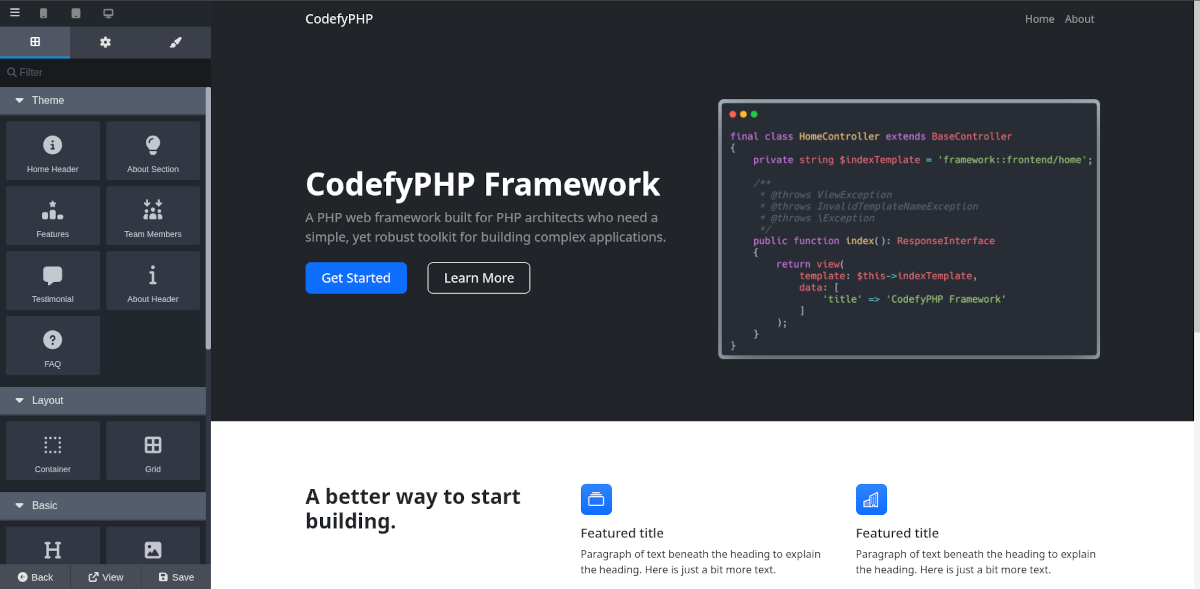
Page Builder
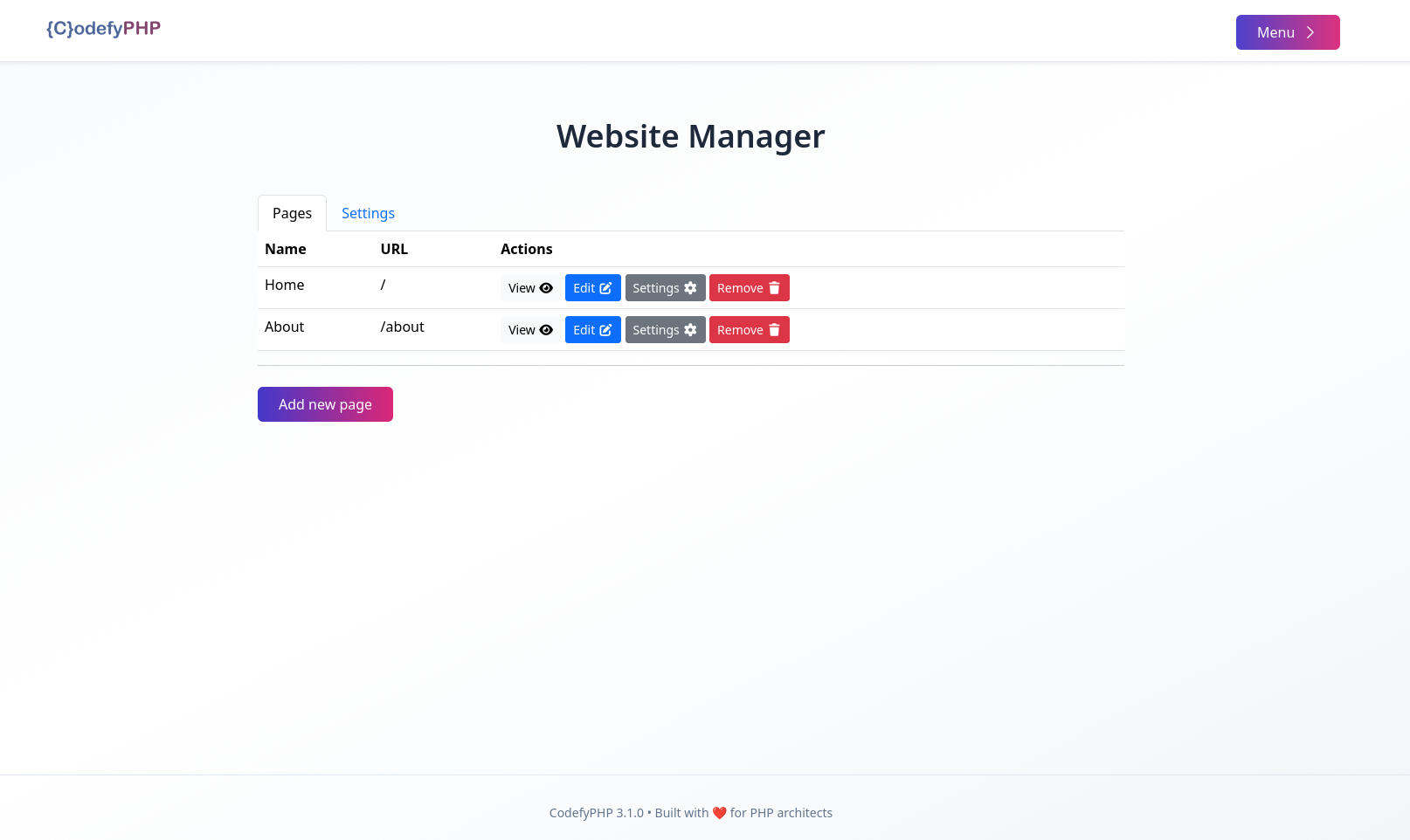
Website Manager
A basic website manager is included with a Bootstrap UI. This website manager offers basic functionality to add or remove pages as well as edit page settings like page title, uri, and more. Clicking the Edit button will open the page builder.
Get Started
To get started, create a new project by using the Vihzhuo app template (starting with version 3.1.1):
Then follow the installation and configuration instructions.
Once your set up is complete, visit the homepage, and you should see the following:
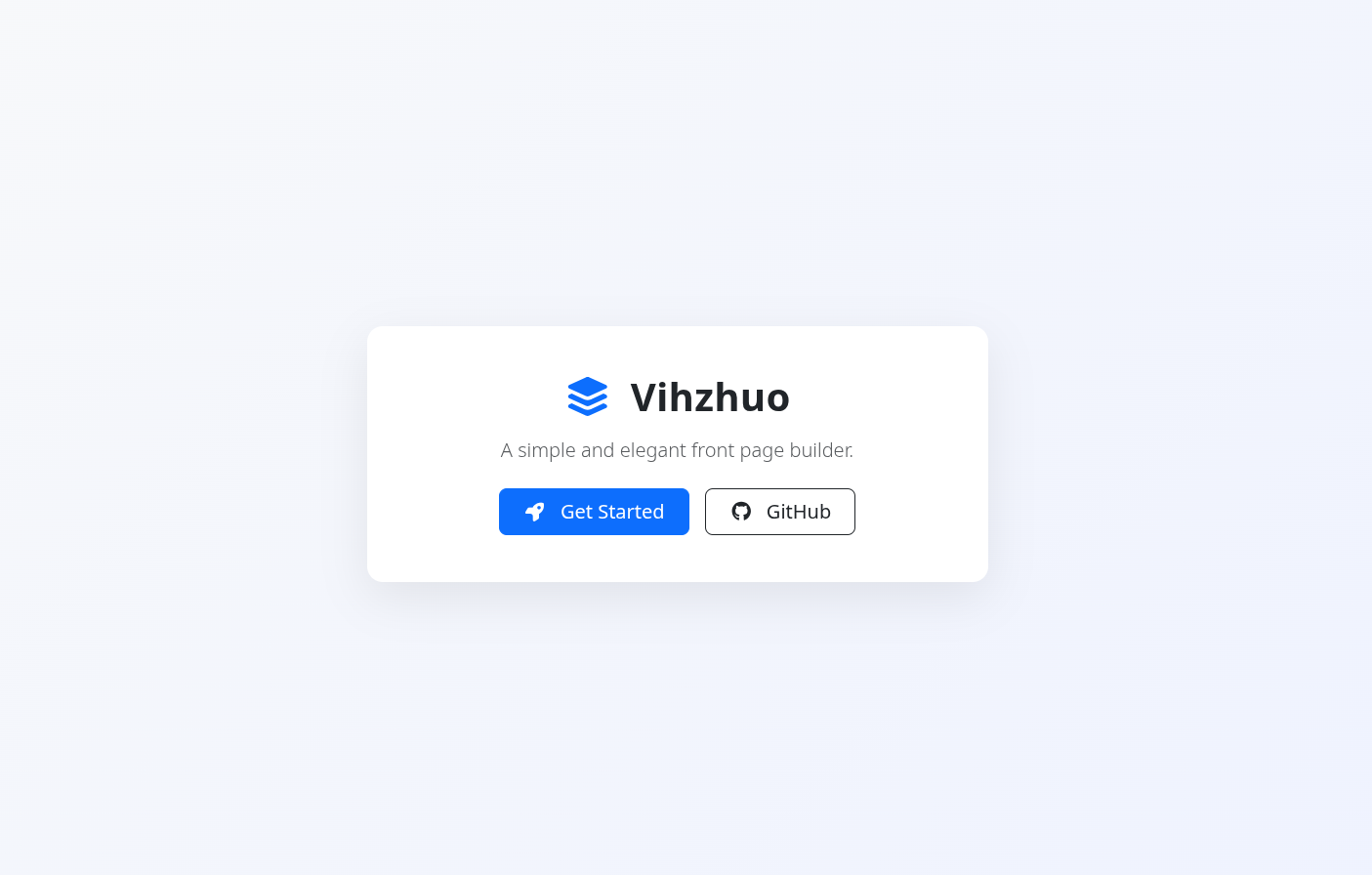
When you click the Get Started link, you will be redirected to the login page. After you log in, click Menu in the upper righthand corner. A list of options will appear; click on Website Manager.
- Once you are there, click the settings tab, select
Englishand save changes - Then click the pages tab to create your first page.
Note
Once you create a homepage with the / route, it will replace the default starter page.
Config
The config for Vihzhuo is located at config/vihzhuo.php. Not much you need to adjust there, but if you want, you can change the default /manager route defined in several places in the config.
Create A Theme
The config/vihzhuo.php config file contains a config key theme in which a themes_folder (public_path('themes')) and active_theme (bootstrap-business) are specified. To create a new theme, add a new folder under public/themes. The name of this folder will be the identifier of the theme, which can be used to specify the theme in the theme => active_theme configuration.
A theme should have the following folder structure:
blocks
The blocks folder contains a sub folder for each block that can be used in the page builder. The folder of a single block contains view.php or view.html. If a view.html is used, the block content (the HTML elements) are fully editable inside the page builder. If view.php is used, the block can be rendered with server-side logic (PHP & CodefyPHP) and hence the HTML content itself cannot be changed from within the page builder.
layouts
The layouts folder contains a sub folder for each page layout. A page layout contains a view.php file which defines the base HTML structure with all stylesheets and scripts needed for the blocks dragged on this type of page. Each layout requires the code: <?=$body;?> on the location at which the HTML blocks need to be added in the page layout.
public
The public folder contains all assets (css, javascript, images, etc) that should be publicly accessible. The [theme-url] shortcode can be used to point to a file in the public folder of the currently active theme. For instance the file public/css/style.css can be loaded via <link rel="stylesheet" href="[theme-url]/css/style.css">.